HTML, CSS &
Web Fundamentals
Build What You See
Watch a plain HTML page transform into a modern website — interactively.
My Website
Welcome to my page. This is a simple website built with HTML.
Let's Start With a Question
What is the worst website
you have ever seen?
Think about it... we've all seen some truly terrible ones.
What Makes a Website Beautiful?
The difference between 'meh' and 'wow' is just a few principles.
of first impressions are design-related
of users won't return after a bad experience
is all you get to make a first impression
of credibility comes from website design
Why Do We Need Good Frontend?
Your backend can be the fastest in the world, your database perfectly normalized, your API flawless — but if your frontend looks like it was built in 2004, nobody will trust it. Frontend is the first and last thing a user sees. It's your handshake, your outfit, your first impression.
The 5 Principles of Beautiful Design
Visual Hierarchy
Guide the eye. Big = important. Small = secondary. People scan, they don't read.
Everything the same size, nothing stands out.
Clear headings, supporting text, obvious CTA.
A Real-World Example
See all 5 principles applied in one design.
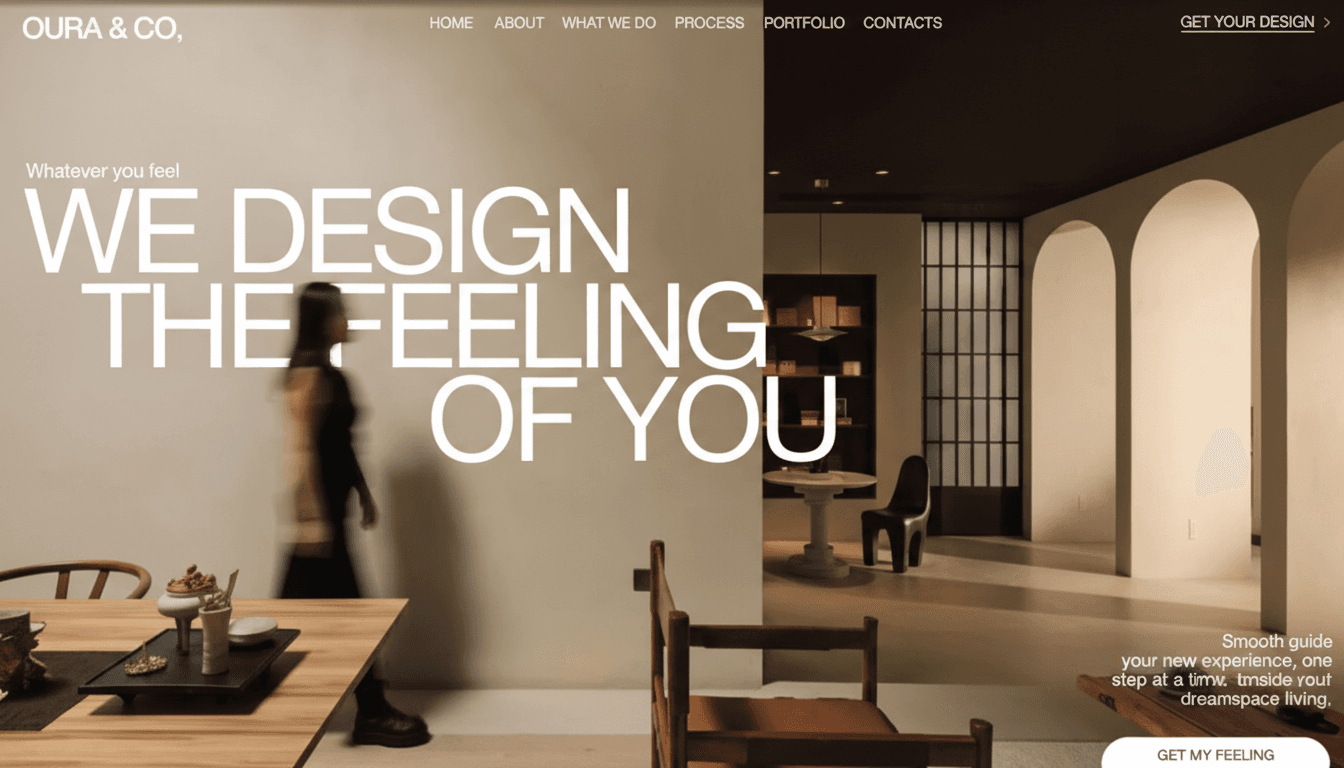
Notice the clean hierarchy, generous whitespace, minimal color palette, and consistent spacing. This is what CSS mastery looks like.
How The Web Works
Click each step to see what happens when you visit a website.
“Everything you see on any website — every button, card, image — is built with what we'll learn today.”
Watch a Website Come to Life
Toggle each stage to see how CSS transforms raw HTML into a modern page.
My Website
Welcome to my page. This is a simple website built with HTML and CSS.
- About
- Projects
- Contact
1<body>2 <h1>My Website</h1>3 <p>Welcome to my page.</p>4 <ul>5 <li>About</li>6 <li>Projects</li>7 <li>Contact</li>8 </ul>9 <button>Click me</button>10</body>HTML — The DOM Tree
Hover any element in the tree to highlight the corresponding HTML code.
1<html>2 <head>3 <title>My Page</title>4 <link rel="stylesheet" href="style.css">5 </head>6 <body>7 <header>8 <h1>Welcome</h1>9 <nav>Home | About</nav>10 </header>11 <main>12 <p>Hello world!</p>13 <img src="photo.jpg" alt="Photo">14 </main>15 <footer>16 <p>© 2025</p>17 </footer>18 </body>19</html>
Practice — HTML Tags
Try these in VS Code before peeking at the answer
“HTML is like building with LEGO blocks. Each tag is a different shaped block.”
Semantic HTML — The Right Way
"You can build everything with <div>, but you SHOULDN'T."
"Using semantic tags is like labeling boxes when you move house. Sure, everything fits in any box — but 'Kitchen Stuff' is a lot more helpful than 'Box #47'."
<div> at the top→<header>Browser knows it's the header
<div> for links→<nav>Screen readers find navigation
<div> for content→<main>Search engines know the important stuff
<div> at the bottom→<footer>Proper document structure
<div> for a post→<article>Each piece of independent content
<div> for a group→<section>Thematic grouping
Practice — Semantic HTML
Try these in VS Code before peeking at the answer
Class & ID — Naming Your Elements
"Class is a name tag at a conference. ID is a social security number — unique to one person."
Class .className
Reusable — many elements can share it
.card<div class="card">Card 1</div> <div class="card">Card 2</div> <div class="card">Card 3</div> <!-- ALL three get styled! -->
.card {
  background: white;
  border-radius: 12px;
  padding: 1rem;
}
Like a school uniform — everyone in the class wears the same thing
ID #uniqueName
Unique — only ONE element can have it
#hero<div id="hero-banner">
Welcome!
</div>
<!-- Only ONE element with
this ID on the page! -->#hero-banner {
background: orange;
font-size: 2rem;
text-align: center;
}Like a passport number — unique to one person only
💡 The golden rule: Use .class for styling (99% of the time). Use #id for JavaScript & anchor links.
If you find yourself using IDs for styling, you're probably doing it wrong.
Practice — Class & ID
Try these in VS Code before peeking at the answer
CSS Magic — See the Difference
Toggle each CSS category on and off. Watch the preview transform in real-time.
CSS Code
1/* Toggle a property above to see the CSS */Live Preview
Profile Card
Frontend developer who loves building beautiful interfaces.
Practice — CSS Properties
Try these in VS Code before peeking at the answer
CSS Units
Not all sizes are created equal. Understanding when to use which is a superpower.
Pixels
Fixed size — never changes regardless of context
16px is always 16px. Period.
Adjust sizes — watch what happens
Live comparison — all set to 2
“If HTML is the skeleton, CSS is the outfit. Let's make it look fire.”
Inline vs Block vs Inline-Block
"Every HTML element is either a bully (block), a team player (inline), or a flexible hybrid (inline-block)."
display: block
A paragraph in a book — always starts on a NEW line and takes the FULL width.
Takes up the entire width available. Stacks vertically. You CAN set width, height, padding, and margin on all sides.
.element {
  display: block;
}↑ Each block starts on a new line — takes full width
<div>blockGeneric container<p>blockParagraph<h1>-<h6>blockHeadings<section>blockSection container<header>blockPage header<footer>blockPage footer<ul> / <ol>blockLists<form>blockForm container<span>inlineInline wrapper<a>inlineLinks<strong>inlineBold text<em>inlineItalic text<img>inlineImages (special!)<button>inline-blockButtons<input>inline-blockForm inputs<select>inline-blockDropdownsPractice — Display Types
Try these in VS Code before peeking at the answer
The Box Model
Every HTML element is a box with 4 layers. Hover each to understand.
Hover over a layer in the box model to learn about it.
Practice — Box Model
Try these in VS Code before peeking at the answer
CSS Position — Where Things Live
"Position is like assigning seats — static is the default, but the others give you superpowers."
position: static
Standing in a queue — you go where the line puts you.
Default position. Element flows normally in the document. top/left/right/bottom have NO effect.
position: static;
/* top, left, etc. do NOTHING */
Practice — CSS Position
Try these in VS Code before peeking at the answer
Flexbox Playground
Experiment with Flexbox properties and watch the layout change live.
display: flex;
flex-direction: row;
justify-content: flex-start;
align-items: flex-start;
flex-wrap: nowrap;
gap: 8px;
.container
Practice — Flexbox
Try these in VS Code before peeking at the answer
“Before Flexbox, centering a div was a meme. Now it's 3 lines.”
Responsive Design — Every Device
Switch devices and watch the layout adapt.
Welcome to my site
A modern responsive website that adapts to any screen size.
Design
Lorem ipsum dolor sit amet.
Develop
Lorem ipsum dolor sit amet.
Deploy
Lorem ipsum dolor sit amet.
Practice — Responsive Design
Try these in VS Code before peeking at the answer
“A developer doesn't just see a website — they see the boxes inside the boxes.”
Destructure a Website
Every website is just nested boxes. Let's break one apart to see the HTML beneath.
Hello, I'm
Sarah
Chen.
Full-Stack Developer & UI Designer

15k+
Person are helped from us everyday
1,456
New members Donate every day
1M+
Members from around the world
Click "Destructure" to see the HTML structure hiding beneath this website.
Mini Challenge — Build a Hero Section
This is what you can build after Day 1. Toggle the styles to see each layer.
Rapid-Fire Quiz
Test what you just learned. No pressure... okay maybe a little.
What tag makes a heading?
What You Learned Today
A visual summary of everything you covered in Day 1.
HTML
Structure — the skeleton of every web page
CSS
Style — colors, fonts, and visual design
Flexbox
Layout — positioning and alignment control
Responsive
Adaptability — works on every device
Transitions
Polish — smooth micro-animations
Tonight's Homework
Optional... but strongly encouraged. These are genuinely fun.
Coming Tomorrow
Day 2 — JavaScript
Your card looks great. But click the button. Nothing happens.
Tomorrow, we fix that. Tomorrow, we add the BRAIN. JavaScript makes your website think, react, and talk to the internet.
Web Dev Bootcamp — Day 1 Complete